Mastering Audio Extraction: Ultimate Guide for Video Editors
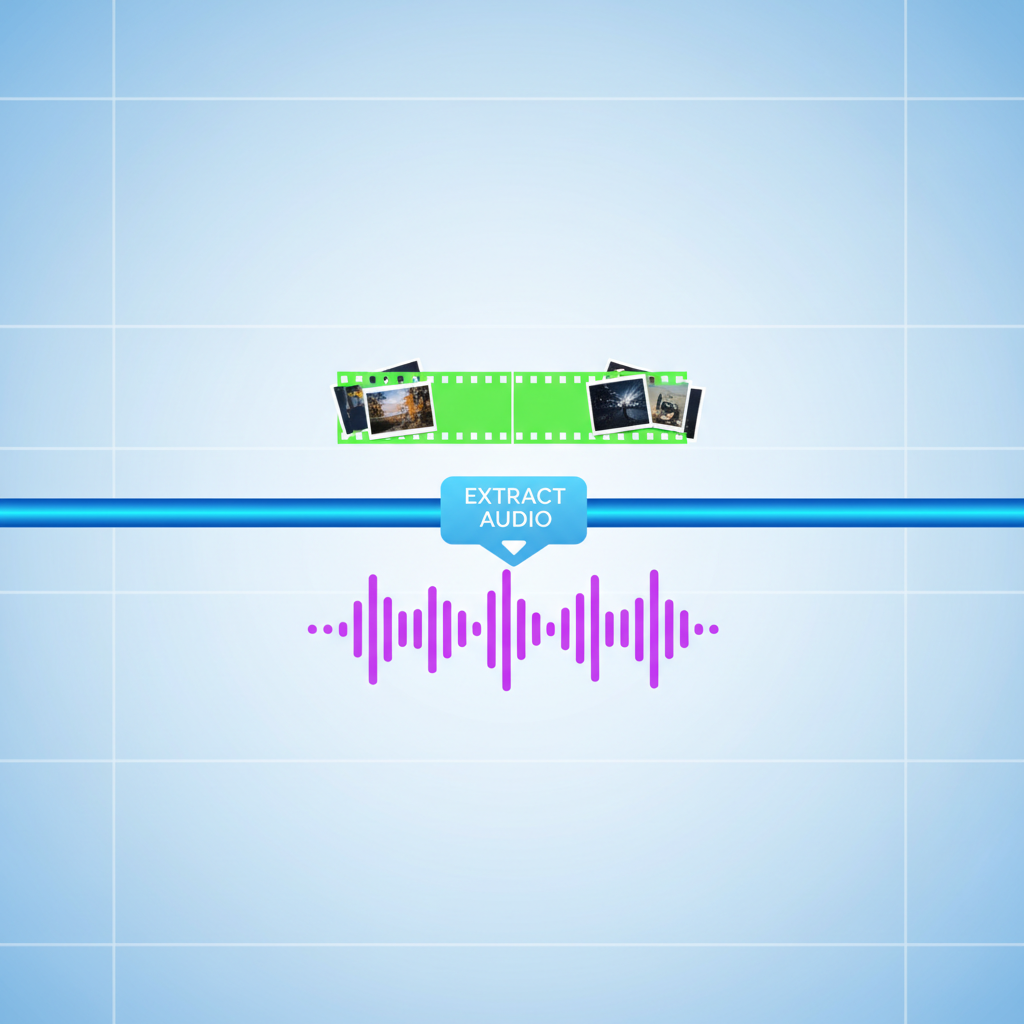
Learn how to perform professional audio extraction from video files using free tools like VLC and specialized software like Premiere Pro. Essential tutoria
Table of Contents
In the world of video editing and content creation, sometimes the visual component isn't the star—it's the sound. Whether you need a clean voiceover, a specific sound effect, or background music isolated from a video clip, knowing how to perform efficient Audio Extraction is an indispensable skill. This process involves separating the audio track from its corresponding video file, giving you a standalone sound file ready for reuse or editing. But how do you do it reliably, quickly, and without losing quality?
This comprehensive guide will walk you through various methods of extracting audio from video, ranging from free, accessible tools like VLC Media Player to professional-grade software like Adobe Premiere Pro. By the end of this tutorial, you will master the techniques required to effortlessly separate audio track files for all your creative projects.
Understanding Why Audio Extraction is Crucial
Before diving into the 'how,' let's briefly touch upon the 'why.' Why do content creators frequently need to extract audio from video? The reasons are numerous, often revolving around efficiency and creative control. For podcasters, extracting interview audio from recorded video calls is standard practice. Filmmakers might need to isolate dialogue for detailed sound mixing. Social media managers often need short audio snippets for reels or TikToks. Mastering Audio Extraction allows for greater flexibility in post-production, ensuring that the sound quality meets the highest standards, independent of the video quality.
Common Use Cases for Separating Audio Tracks
- Podcasting: Converting video interviews into audio-only episodes.
- Sound Design: Isolating specific sound effects or ambient noise.
- Transcription: Creating clean audio files for automated transcription services.
- Remixing: Using music or voiceovers from existing video content.
- Archiving: Saving high-quality audio independently of large video files.
Method 1: Free and Easy Audio Extraction with VLC Media Player
VLC Media Player is more than just a video player; it's a powerful, free, open-source tool capable of complex tasks, including reliable VLC audio extraction. This method is ideal for beginners and those needing a quick solution without installing specialized video editing software.
Step-by-Step VLC Audio Extraction Tutorial
- Open VLC: Launch the VLC Media Player application.
- Access Conversion Menu: Go to the 'Media' menu and select 'Convert / Save...' (Ctrl+R or Cmd+R).
- Add Video File: Click the '+ Add...' button and select the video file from which you wish to separate audio track. Click 'Convert / Save.'
- Select Conversion Profile: In the new window, under the 'Settings' section, choose a suitable audio format from the 'Profile' dropdown menu. Popular choices include 'Audio - MP3' or 'Audio - AAC' for maximum compatibility and quality.
- Define Output: Click the 'Browse' button next to 'Destination file' to choose where the extracted audio will be saved and name the new file (e.g.,
my_extracted_audio.mp3). Ensure the file extension matches the chosen profile (e.g.,.mp3). - Start Extraction: Click the 'Start' button. VLC will process the video, extracting only the audio component. The process time depends on the video length and your computer's speed.
Method 2: Professional Audio Extraction using Adobe Premiere Pro
For professional video editors, using dedicated software offers greater control and integration into existing workflows. Adobe Premiere Pro provides two primary ways to handle Audio Extraction: linking/unlinking and exporting specifically the audio track.
Unlinking and Exporting Audio in Premiere Pro
When you import a video clip into Premiere Pro, the video and audio tracks are typically linked. To work with the audio independently, you must first unlink them:
- Import and Sequence: Import the video file and drag it onto your timeline.
- Unlink Tracks: Right-click on the clip in the timeline and select 'Unlink.' Alternatively, press Ctrl+L (Cmd+L on Mac). This action allows you to move, delete, or edit the audio track separately from the video track.
- Isolate and Export: Once unlinked, you can delete the video track entirely, leaving only the audio. Go to 'File' > 'Export' > 'Media...' (Ctrl+M or Cmd+M).
- Choose Audio Format: In the Export Settings, select an audio-only format under 'Format,' such as MP3 or WAV. Adjust bitrate and sample rate for optimal quality. Click 'Export.' This is the cleanest way to perform high-quality separate audio track extraction within a professional environment.
Method 3: Quick Online Audio Extraction Tools
If you have a small file and don't want to download any software, an online audio extractor provides a fast, browser-based solution. These tools are convenient but often have file size limitations and may require caution regarding privacy and security.
Choosing a Reliable Online Audio Extractor
Several reputable websites offer this service. Look for tools that support common video formats (MP4, MOV) and output high-quality audio formats (MP3, WAV).
- Upload: Upload your video file to the chosen online platform.
- Select Output Format: Choose your desired output format (e.g., MP3).
- Extract: Click the 'Extract' or 'Convert' button.
- Download: Once processed, download the newly created audio file.
While convenient, always ensure the platform is secure, especially when dealing with sensitive content. For large projects or frequent use, desktop software like VLC or Premiere Pro remains the superior choice for consistent quality and speed.
Optimizing Extracted Audio Quality and Format
The success of your Audio Extraction often hinges on the quality settings you choose. Simply extracting the audio isn't enough; you must ensure it’s saved in the correct format and bitrate for its intended use.
Understanding Audio Formats and Bitrates
- MP3 (MPEG-1 Audio Layer III): Highly compressed, small file size, excellent for general distribution and web use. Ideal for podcasts and music sharing.
- WAV (Waveform Audio File Format): Uncompressed, lossless quality. Large file size. Best for professional sound editing and mastering where quality preservation is paramount.
- AAC (Advanced Audio Coding): Successor to MP3, often offering better quality at similar bitrates. Common in Apple ecosystems.
- Bitrate: Measured in kbps (kilobits per second). Higher bitrates (e.g., 320 kbps for MP3) mean better quality but larger files. For voice, 128 kbps is often sufficient, but for music, aim higher.
When using any video editing software or converter, always check the output settings to avoid unnecessary compression or quality loss. If the original video audio track was high quality, ensure your extraction settings match or exceed it to preserve fidelity.
Frequently Asked Questions
What is the best software for high-quality Audio Extraction?
For professional, lossless Audio Extraction, dedicated video editing software like Adobe Premiere Pro or DaVinci Resolve is recommended, as they offer precise control over export settings and formats (like WAV). For quick, reliable extraction of common formats, VLC Media Player is an excellent free alternative.
Does extracting audio reduce the quality of the sound?
If you use a lossless format like WAV or a high-bitrate compressed format (e.g., 320 kbps MP3) that matches the original source, the quality loss will be minimal or non-existent. Quality reduction usually occurs if you choose a highly compressed format or use a poor-quality online audio extractor that defaults to low bitrates.
Can I extract audio from protected or encrypted video files?
No. Legal and technical restrictions prevent Audio Extraction from digitally protected content (like streaming service videos or copyrighted DVDs) using standard tools. Attempting to bypass these protections violates copyright laws and terms of service.
How long does it take to extract audio from a video?
The time required for extracting audio from video depends primarily on the length of the video file and the speed of your computer's processor. A 10-minute video might take less than a minute on a modern computer using a tool like VLC, while longer, high-resolution files processed by professional video editing software might take longer due to complex rendering processes.
Conclusion
Audio Extraction is a fundamental technique that unlocks the potential of your video content's sound component. Whether you opt for the simplicity of an online audio extractor, the versatility of VLC, or the precision of professional video editing software like Premiere Pro, the ability to separate audio track files efficiently will significantly enhance your post-production workflow.
Don't let valuable sound assets remain trapped inside video containers. Start practicing these methods today to gain full creative control over your audio. Ready to elevate your content? Download VLC or open your preferred video editor and try extracting your first audio track!