Mastering Audio Extraction: Ultimate Guide for Content Creators

Learn how to perform audio extraction from video files using professional software and free online tools. Essential guide for content creators and video ed
Table of Contents
- The Fundamentals of Audio Extraction: Why Separate Sound?
- Method 1: Desktop Video Editing Software (Professional Grade)
- Method 2: Free and Open-Source Software (The Budget-Friendly Choice)
- Method 3: Online Audio Extraction Tools (Speed and Convenience)
- Choosing the Right Audio Format for Your Project
- Troubleshooting Common Audio Extraction Issues
Are you a content creator, video editor, or podcaster looking to repurpose high-quality sound bites from existing video footage? Knowing how to perform efficient Audio Extraction is an indispensable skill. Whether you need a clean voiceover track, background music, or sound effects, separating audio from video can unlock a wealth of creative possibilities. This comprehensive guide will walk you through the best methods, tools, and tips to successfully extract audio from video files, ensuring you maintain the highest possible quality for your projects. Get ready to master the art of sound separation!
The Fundamentals of Audio Extraction: Why Separate Sound?
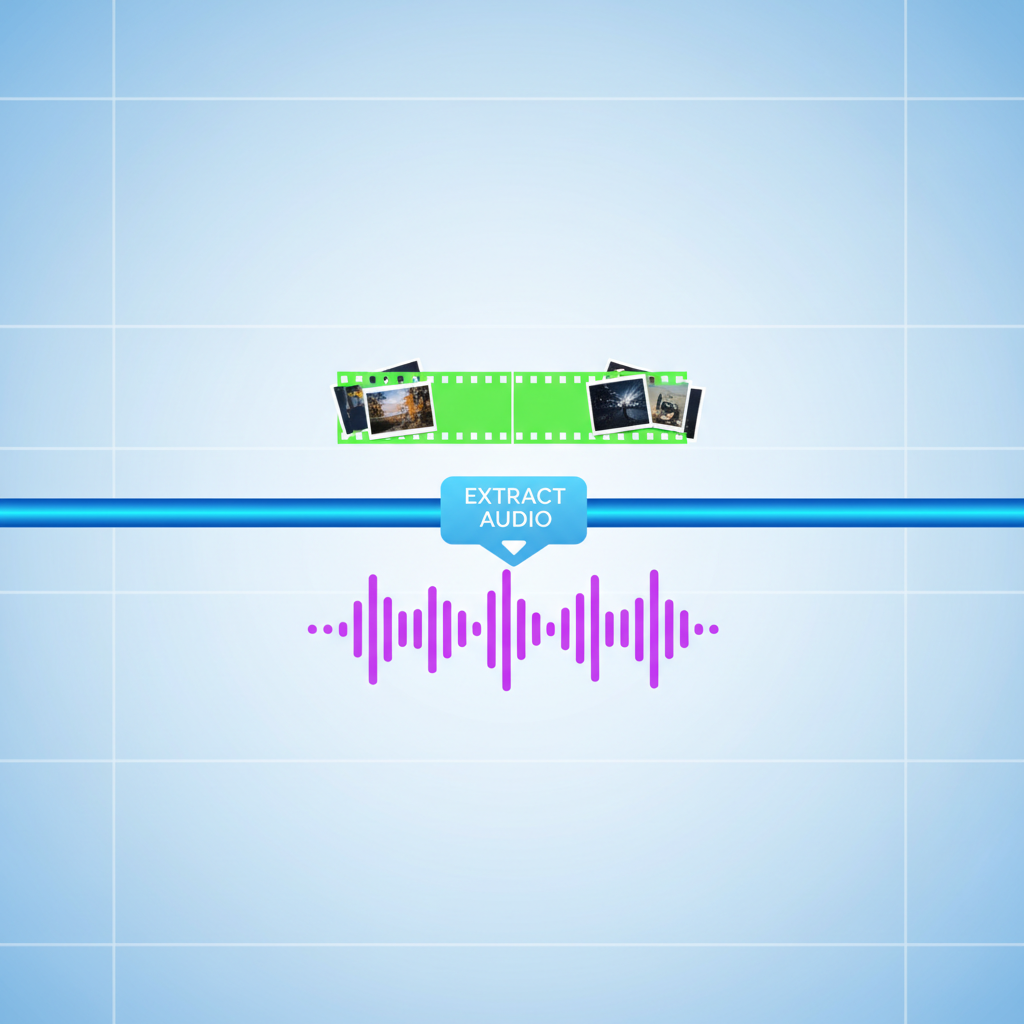
Before diving into the 'how,' it's crucial to understand the 'why.' Video files, such as MP4 or MOV, contain both visual and auditory data bundled together. Audio Extraction is the process of isolating the audio stream from this container, resulting in a standalone audio file (like MP3, WAV, or AAC). Content creators frequently need this process for:
- Podcasting: Turning video interviews or webinars into audio-only podcast episodes.
- Sound Design: Isolating specific sound effects or music beds for use in other projects.
- Transcription: Creating a clean audio file for automated or manual transcription services.
- Efficiency: Working with smaller, dedicated audio files is often faster and less resource-intensive than managing large video files during post-production.
Choosing the right tool depends on your technical skill, budget, and the complexity of the source video. We will explore both professional desktop solutions and accessible online services to help you separate audio from video effectively.
Method 1: Desktop Video Editing Software (Professional Grade)
For maximum control, quality, and batch processing capabilities, dedicated video editing software is the superior choice. These tools allow for precise trimming, noise reduction, and format conversion during the Audio Extraction process.
Using Adobe Premiere Pro/DaVinci Resolve
Professional Non-Linear Editing (NLE) suites offer the most robust way to extract audio from video:
- Import the Video: Drag your video file into the project bin and place it on the timeline.
- Unlink the Audio: In most NLEs (like Premiere Pro), right-click the clip and select 'Unlink' or 'Separate Audio and Video.' This allows you to manipulate the audio track independently.
- Clean Up (Optional but Recommended): Use built-in tools to remove background noise, adjust levels, or apply equalization.
- Export the Audio: Go to the export settings. Instead of selecting a video format (like H.264), choose an audio-only format. High-quality options include WAV (uncompressed) or FLAC. If file size is a concern, choose MP3 or AAC at a high bitrate (320 kbps is standard for quality).
This method ensures the highest fidelity and is ideal for projects requiring professional sound quality.
Method 2: Free and Open-Source Software (The Budget-Friendly Choice)
You don't always need expensive software to separate audio from video. Free tools offer powerful features, especially for common file types like MP4 and MOV.
Leveraging VLC Media Player
VLC is renowned as a versatile media player, but it also includes powerful conversion capabilities, making it an excellent free audio extractor:
- Open Conversion Tool: In VLC, navigate to 'Media' > 'Convert/Save...'
- Select Source File: Add the video file you wish to process.
- Choose Conversion Profile: Click 'Convert/Save.' In the Profile dropdown, select an audio-only format, such as 'Audio - MP3' or 'Audio - Ogg (Vorbis).'
- Set Destination: Specify where the new audio file should be saved.
- Start Conversion: Click 'Start.' VLC will process the file, performing the Audio Extraction quickly and efficiently.
VLC is perfect for quick, no-frills extraction across all major operating systems.
Using Audacity for Advanced Editing
While Audacity cannot directly import the audio stream from all video containers, it works perfectly when paired with tools like FFmpeg. Once the audio is extracted (perhaps using VLC or FFmpeg command line), Audacity allows for detailed waveform editing, noise gating, compression, and fine-tuning before final export. This combination provides professional-level editing without the professional price tag.
Method 3: Online Audio Extraction Tools (Speed and Convenience)
For users who need to extract audio from video infrequently or who are working on a shared computer, online tools offer unparalleled convenience. These services require no installation but often have file size limits and rely on a strong internet connection.
Key Considerations for Online Extractors
- Security: Always use reputable sites, as you are uploading proprietary content.
- File Size Limits: Free tiers usually restrict uploads to 100MB or less.
- Format Support: Ensure the tool supports both your input video format (e.g., MKV, AVI) and your desired output audio format (e.g., M4A, WAV).
Popular examples include Online Audio Converter or ConvertFiles, which simplify the process into three steps: upload, select output format, and download the extracted audio.
Choosing the Right Audio Format for Your Project
The final step in successful Audio Extraction is selecting the appropriate output format. The choice impacts file size, quality, and compatibility.
| Format | Description | Best Use Case |
|---|---|---|
| WAV (.wav) | Uncompressed, lossless quality. Large file size. | Archival, professional sound design, mastering. |
| FLAC (.flac) | Lossless compression. Smaller than WAV, but retains quality. | High-fidelity listening, preserving source quality. |
| MP3 (.mp3) | Lossy compression. Highly compatible and small file size. | Podcasting, web streaming, general distribution. |
| AAC (.aac) | Lossy compression, often superior to MP3 at lower bitrates. | Apple devices, YouTube, mobile playback. |
If you plan on further editing the audio, always choose a lossless format (WAV or FLAC) initially. If the audio is for final distribution or web use, MP3 at 192 kbps or higher is usually sufficient.
Troubleshooting Common Audio Extraction Issues
Occasionally, you might encounter issues when trying to separate audio from video. Here are common problems and solutions:
- Synchronization Issues: If the extracted audio doesn't match the video timing, the original video file might have variable frame rate (VFR). Try converting the video to a constant frame rate (CFR) first using HandBrake before attempting extraction.
- Unsupported Format: If your software doesn't recognize the video file (e.g., older WMV or proprietary codecs), use a universal converter like FFmpeg to change the container to MP4 or MOV first.
- Low Volume/Quality: If the extracted audio is too quiet, ensure you are exporting at a high bitrate (if using a lossy format like MP3) and use normalization tools in Audacity or your NLE to boost the overall volume to standard levels.
By understanding these different methods and tools, you can confidently perform high-quality Audio Extraction for any creative project, ensuring your sound assets are clean, optimized, and ready for use.
Frequently Asked Questions
What is the best format for extracted audio?
The best format depends on the use case. For maximum quality and professional editing, use WAV or FLAC (lossless formats). For distribution, compatibility, and smaller file size, MP3 or AAC at a high bitrate (e.g., 320 kbps) is recommended.
Can I extract audio from YouTube videos?
While many online tools offer this capability, extracting audio from copyrighted YouTube content violates YouTube's Terms of Service and copyright law. You should only extract audio from videos you own or those explicitly licensed for reuse.
Is there a free tool to separate audio from video?
Yes, VLC Media Player is an excellent, free, and cross-platform tool that acts as a powerful free audio extractor. It supports a wide range of video and audio codecs and allows direct conversion to popular audio formats like MP3 and Ogg.
Does audio extraction reduce the quality of the sound?
If you extract the audio and save it in a lossless format (WAV or FLAC), the quality will be identical to the original audio stream within the video file. Quality loss only occurs if you convert it to a highly compressed, lossy format like a low-bitrate MP3.
Conclusion
Mastering Audio Extraction is a fundamental skill that significantly enhances a content creator's workflow, allowing for efficient repurposing and quality control of sound assets. Whether you opt for the precision of professional video editing software, the versatility of VLC, or the convenience of an online free audio extractor, the key is choosing the method that best suits your needs and prioritizing the final audio quality. Don't let valuable sound remain trapped inside video containers. Start experimenting with these tools today to unlock the full potential of your media library. Ready to elevate your sound design? Download one of the recommended free tools and try your first audio extraction now!